Many users mistakenly delete photos and worry about losing them forever. Rooting the phone is usually a solution, but it brings serious risks. It can void your warranty or even expose personal data to threats. Yet, several simple and secure methods can help restore your lost pictures in minutes.
Whether you use native options or trusted recovery software, results can be effective. One reliable choice is Dr.Fone Android Data Recovery, which retrieves deleted images without hassle. So, this guide explores safe ways to recover your photos without taking unnecessary risks.
Section 1: Understanding Rooting and Its Risks for Photo Recovery
The rooting method means gaining full control over your Android phone’s system settings and files. It lets users alter system features or access restricted areas that are usually hidden. Apart from that, rooting also comes with serious drawbacks that most people overlook. It can cancel your phone’s warranty and cause system instability.
Plus, some Android data recovery software may ask for root access to scan deeper storage areas. Yet, this process is not always safe for beginners. That’s why utilizing unroot recovery methods is a safer choice to retrieve photos.
Potential Drawbacks of Using Rooting Methods
- System Damage: An incorrect method can even delete important files or damage core software. This may cause frequent crashes or even make the device completely unusable.
- Warranty Void: Rooting your device usually cancels its official manufacturer’s warranty. Once rooted, you lose free repair or service support from authorized centers.
- Security Risks: Root access removes native protection and makes your phone easier to hack. Malicious apps can gain control and steal personal files or sensitive information.
- Update Issues: Rooted devices usually cannot install official system updates or patches easily. Missing updates will then expose your phone to bugs and instability.
- Performance Drops: Upon rooting, system settings may conflict and cause lag or overheating. Over time, your device becomes slower and less stable than before rooting.
Section 2: Quick Non-Root Recovery Options on Android Devices
Various native methods are available to help you recover mistakenly or recently deleted photos. So, this section covers 2 ways to recover deleted photos on Android using simple solutions:
Solution 1. Recover Through Recycle Bin
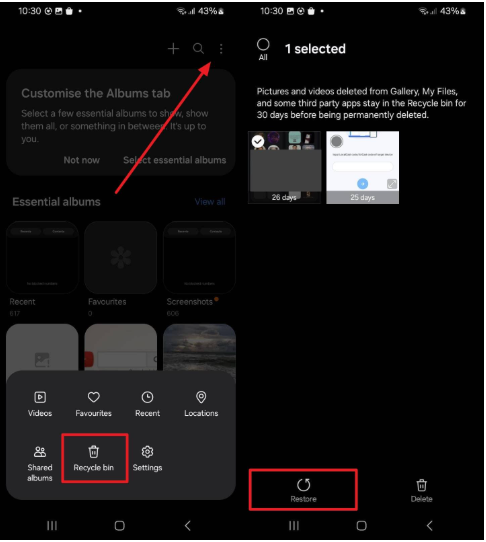
The Recycle Bin feature works like a safety net for your deleted photos. It stores removed images and videos for up to 30 days before erasing them permanently. This gives you enough time to restore accidentally deleted files without extra tools. Yet, the feature must be enabled before any deletion happens. You can follow the given guide to recover your deleted photos:
Instruction. Access the “Gallery” app and tap the “Three Dots” icon to head to the “Recycle Bin” option. After that, choose your desired recently deleted photo and tap the “Restore” option.
Solution 2. Restore from Cloud Storage
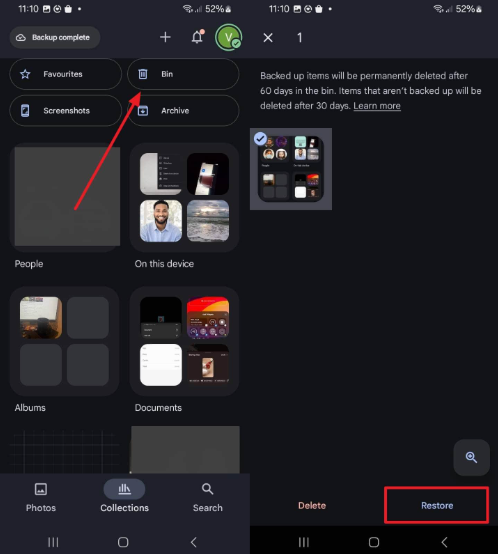
Cloud storage offers an easy and safe way to recover deleted photos that Android users lose. Services like Google Photos or OneDrive automatically back up pictures for later restoration. They keep deleted files in a trash folder for several days before final deletion happens when sync is enabled. Hence, go through the following steps to restore your deleted photos through this method:
Instruction. To initiate, go to the “Google Photos” app and tap the “Bin” folder to choose the deleted photo. When found and selected, opt for the “Restore” option to recover the image.
Section 3: When Non-Root Methods Are Not Enough
Many times, even the best native recovery ways can’t restore all photos and require Android data recovery software. Thus, let’s look at cases where non-root methods might not be enough:
- Permanent Deletion: Photos removed from both the gallery and trash need deep scanning to recover.
- Expired Backups: Old cloud backups may expire, losing stored photo versions from the servers.
- Cache Cleared: Cleaning the system cache can erase temporary image data needed for recovery.
- System Crash: Sudden crashes might corrupt storage, making standard recovery methods fail afterward.
- App Corruption: Gallery or cloud app corruption prevents access to deleted images.
Section 4: How Dr.Fone Android Data Recovery Retrieves Photos Without Rooting
When the native methods can’t help, Dr.Fone Android Data Recovery software provides a secure way to retrieve lost data without rooting. It supports 6000+ Android phones and tablets to ensure broad compatibility for users. Besides photos, you can recover multiple other data types, such as contacts and messages. The tool allows selective scanning, so you can efficiently search for specific file types.
With real-time preview, you can also view deleted data before starting the recovery process. This helps you choose what to restore, saving both time and storage space. Plus, Dr.Fone covers multiple data loss causes, including accidental deletion and system crashes. It even restores data after rooting errors, water damage, or black screens.
Key Features
- WhatsApp Recovery: Even recovers deleted WhatsApp messages and attachments effortlessly.
- File Filtering: Uses smart filters to locate essential files quickly during data scanning.
- Deep Scanning: Searches both internal and external storage for thoroughly deleted data fragments.
Guide to Retrieve Photos Without Rooting Using Dr.Fone – Data Recovery (Android)
Take guidance from the given steps to find out how this tool helps you restore your photos from your Android:
Step 1. Open the Android Data Recovery Tool
Once you access the “Toolbox” tab of Dr.Fone, head to “Data Recovery” and choose “Android” as your device. Upon navigating to the next screen, select the “Recover Android Data” feature.
Step 2. Select Photos to Start Scanning
Here, connect your Android phone to the computer and let the tool detect it. Once you see the data types, choose “Photos” and press the “Start Scan” button.
Step 3. Restore Your Desired Android Photos
As the tool shows all your deleted photos, opt for your desired ones and press the “Recover” button. Afterward, choose your preferred saved location and hit the “Recover” button again.
Section 5: Preventive Tips for Photo Safety Without Rooting
Keeping your photos safe is always better than struggling to restore them later. Thus, the following tips help you reduce your dependency on Android data recovery software:
- Cloud Backup: Activate cloud sync to store pictures for easy access when files disappear. It ensures deleted photos remain recoverable even if your phone gets damaged.
- Regular Copy: Transfer copies of pictures to your computer or external drive every few days. This backup helps recover photos without depending on unstable online storage links.
- Use Antivirus: Install a trusted antivirus app to block harmful bugs that corrupt stored photo files. It keeps both your gallery and saved backups safe from malware-driven data loss.
- Update Software: Keep your system updated to prevent bugs that cause unexpected photo loss. New updates often fix storage or security issues that could delete media files.
- Check Gallery: Review the “Recently Deleted” folder before cleaning your phone’s gallery. It contains mistakenly removed photos that can be restored within a few days.
Conclusion
In conclusion, recovering deleted photos doesn’t always require risky rooting methods. This article has explored several native methods to help you retrieve photos without rooting. Still, in case native options fail, using a reliable tool becomes essential. That’s where Dr.Fone Android Data Recovery proves valuable, offering an effortless way to restore lost photos.