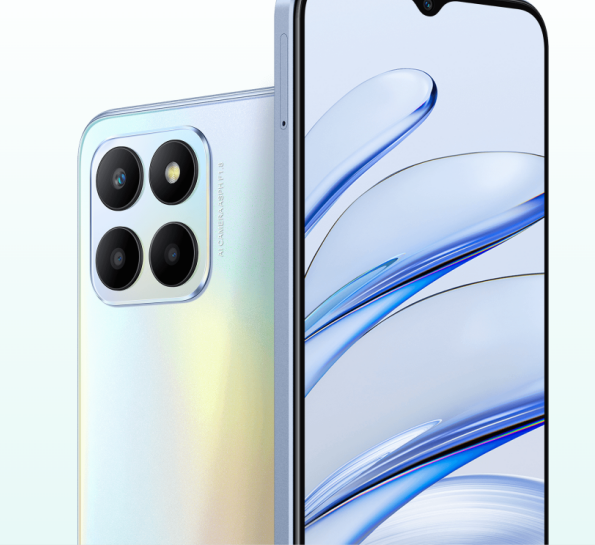
The HONOR 70 Lite is a powerful smartphone with a wide variety of features that can improve your time spent online. We have created a collection of helpful hints that will allow you to take full advantage of your HONOR 70 Lite. These suggestions will help you get the most out of your HONOR 70 Lite in every way, from boosting performance to minimizing wasted effort.
Enhances the fun of using a HONOR 70 Lite.
Alter the Look of Your Start Screen:
Make your HONOR 70 Lite truly unique by tweaking its home screen to your liking. Wallpapers, widgets, and the ability to rearrange icons may all be customized by pressing and holding down on the home screen for a few seconds. Try out different styles and layouts to find the perfect one for your home screen.
Use Hand Signals to Your Advantage
The phone may be navigated using gestures instead of buttons. Go to Settings > System & updates > System navigation and toggle on “Gesture navigation.” As a result, you may have a more immersive and intuitive navigation experience by swiping and performing gestures to complete actions like going back, accessing the home screen, and opening recently used apps.
Battery life extension:
Several features of the HONOR 70 Lite are geared toward optimizing battery life. To find options like Power-saving mode and Ultra power-saving mode, head to Settings > Battery > Battery optimization. You can count on having enough juice to last the whole day thanks to these modes, which control how much background activity can occur and which settings are used.
Protect Your Tech:
Utilize the HONOR 70 Lite’s in-built protection mechanisms to keep your data safe and secure. In the Settings menu, tap Security & privacy, and then Fingerprint ID/Face recognition to set up a safe method of unlocking your device. To further protect certain apps with a password or biometric authentication, you can turn on App Lock in Settings > Security & privacy > App Lock.
Modify Alert Preferences:
Adjust your settings so that you are alerted to critical messages while being distracted as little as possible. To configure the apps you want to get notifications from, select Settings > Notifications. You may set options for which apps should be given priority, whether to mute notifications, and how they should sound and vibrate.
Use Only One Hand:
Turn on One-Handed Mode if you find it difficult to use your HONOR 70 Lite with just one hand. To engage One-Handed Mode, swipe down diagonally from the screen’s bottom right corner. This will reduce the screen’s size and modify the interface so that it can be used with one hand.
Simple Screenshot Capturing:
Using the built-in screenshot motions, taking screenshots is a breeze. You can take an immediate screenshot by swiping down with three fingers. Alternately, you can use the actual buttons by simultaneously pushing the power and volume down keys.
Use the Split-Screen function:
The HONOR 70 Lite’s Split-Screen Mode greatly improves your ability to juggle multiple tasks at once. For your recently used apps, swipe up from the bottom of the screen, tap and hold on an icon, and then choose “Open in split-screen.” You may now multitask between two apps, which is both efficient and convenient.
Learn More About HONOR-Optimized Apps
HONOR phones come with a variety of useful apps that may be used right away. Check out HONORHealth, HONOR Club, and HONOR Store for keeping tabs on your health and fitness progress, and HONOR Store for access to unique material and updates. These apps extend the functionality and usefulness of the HONOR platform.
Conclusion:
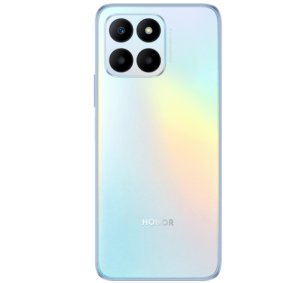
This guide will help you get the most out of your HONOR by maximizing its features and capabilities. Benefit from HONOR’s one-of-a-kind features and capabilities, such as the ability to modify the home screen, use gestures for navigation, extend battery life, tighten security, and more. Enjoy a smooth and tailored smartphone experience that is tailored to your requirements and tastes by utilizing the full potential of your HONOR smartphone.