AirPods are one of the most popular wireless earphones that are designed and developed by Apple. They have become very popular among iPhone users and have become an essential accessory for many. However, for people who are new to AirPods, the process of connecting them to their iPhone can seem daunting. In this article, we will be discussing how to connect AirPods to an iPhone, step by step.
How to Pair AirPods with iPhone
The process of pairing AirPods with an iPhone is similar to the process of pairing any Bluetooth device with an iPhone. Here’s how to link airpods to iphone
Ensure that your AirPods are charged.
Place the AirPods in their charging case and ensure that the lid is open.
On your iPhone, go to “Settings” and then “Bluetooth.”
Ensure that Bluetooth is turned on.
Wait for your AirPods to appear in the list of available Bluetooth devices.
Tap on your AirPods.
Follow the on-screen instructions to complete the pairing process.
Once the pairing process is complete, your AirPods should be connected to your iPhone.
How to Sync AirPods to iPhone
Step 1: Make sure your iPhone is connected to Wi-Fi and Bluetooth is turned on.
Step 2: Open the AirPods case and keep it close to your iPhone.
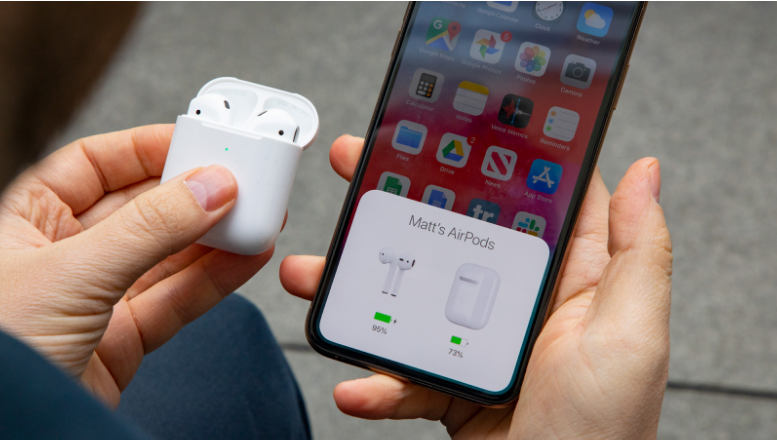
Step 3: A popup window will appear on your iPhone asking if you want to connect your AirPods. Tap “Connect” to proceed.
Step 4: Your AirPods will now be connected to your iPhone. You can check the battery level of your AirPods by swiping down from the top-right corner of your iPhone screen and tapping on the battery widget.
If you have already connected your AirPods to your iPhone before and want to connect them again, you can follow these steps:
Step 1: Put your AirPods in their case and close the lid.
Step 2: Open the lid and press and hold the setup button on the back of the case until the LED light on the front of the case starts flashing white.
Step 3: On your iPhone, go to Settings > Bluetooth and look for your AirPods in the list of available devices.
Step 4: Tap on your AirPods to connect them to your iPhone
How to connect airpods pro to iphone
There are a few things that you need to ensure before attempting to pair your AirPods to your iPhone. Firstly, your iPhone should be updated to the latest version of iOS. Secondly, your AirPods should be charged and placed in their charging case.
Go to the Home Screen: Ensure that your iPhone is unlocked and on the Home Screen.
Open the Charging Case: Open the lid of the AirPods charging case.
Hold it Next to Your iPhone: Hold the open charging case near your iPhone. This will automatically trigger a setup animation on your iPhone screen.
Tap Connect: Tap on the “Connect” button on your iPhone screen to connect your AirPods.
Follow the On-Screen Instructions: Follow the on-screen instructions to complete the pairing process. If prompted, you may also be asked to set up Siri with your AirPods.
If you own AirPods Pro (1st or 2nd generation) or AirPods (3rd generation), read the next three screens to customize your AirPods settings. This customization includes features such as noise cancellation, Transparency mode, and Spatial Audio.
These steps should enable you to pair and connect your AirPods to your iPhone without any hassle. If you face any issues while connecting your AirPods to your iPhone,
In conclusion, connecting your AirPods to your iPhone is a simple process that can be done in a matter of minutes. By following the above-mentioned steps, you can easily connect your AirPods to your iPhone and enjoy high-quality wireless audio.
Frequently Asked Questions
Q: How do I connect my AirPods to my iPhone?
A: To connect your AirPods to your iPhone, first, make sure your AirPods are charged and in their case. Then, go to your iPhone’s home screen, open the lid of your AirPods case, and hold it close to your iPhone. A prompt will appear on your iPhone’s screen asking if you want to connect to your AirPods. Tap “Connect” to establish the connection.
Q: Do I need to turn on Bluetooth to connect AirPods to my iPhone?
A: Yes, you need to turn on Bluetooth to connect your AirPods to your iPhone. You can do this by going to the Settings app on your iPhone, tapping “Bluetooth,” and then toggling the switch to the “on” position.
Q: How do I know if my AirPods are connected to my iPhone?
A: When your AirPods are connected to your iPhone, a small icon of AirPods will appear in the status bar at the top of your iPhone’s screen. You can also check the “Bluetooth” section in the Settings app to confirm the connection.
Q: Can I connect my AirPods to multiple iPhones?
A: Yes, you can connect your AirPods to multiple iPhones, but you can only use them with one device at a time. To switch between devices, you need to disconnect the AirPods from one device and connect them to the other.
Q: How do I disconnect my AirPods from my iPhone?
A: To disconnect your AirPods from your iPhone, go to the Control Center by swiping down from the top right corner of your iPhone’s screen. Tap the “AirPlay” icon, select your AirPods, and then tap “Disconnect