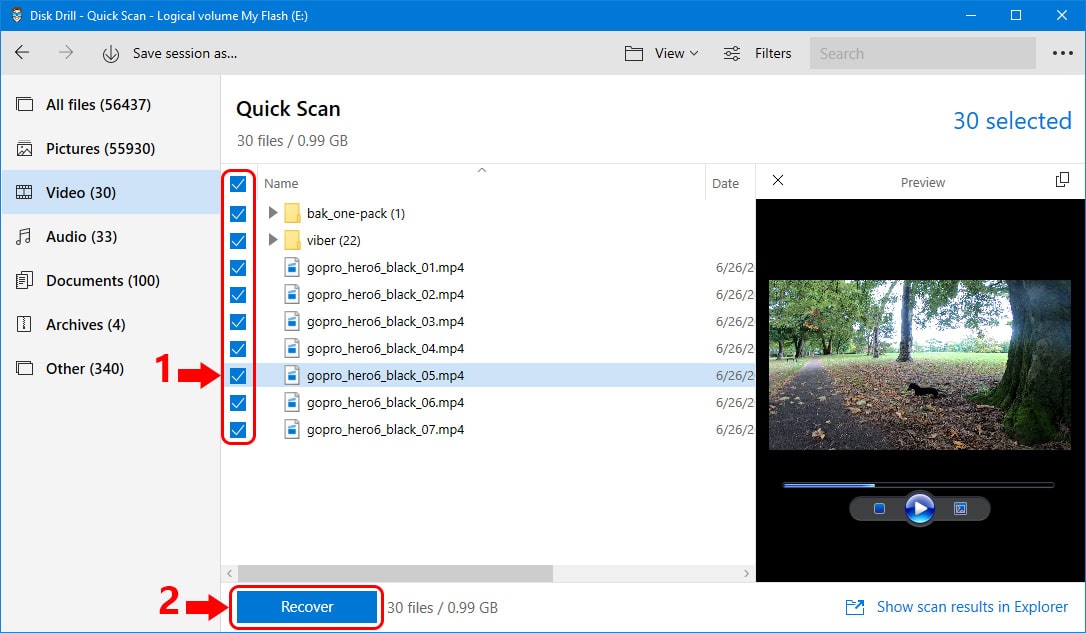
Have you taken your time to record a great video, edit it and export it? Then it suddenly went missing, and you don’t seem to find it in your device or backup places?
That is a common challenge. Wrong clicks and carelessness have often resulted in this frustrating experience. Sometimes, we don’t know what to do except go online and google possible solutions.
Is that why you are here? Well, video recovery is possible, especially with Wondershare Recoverit, a data recovery software you will learn to use in a few minutes! Keep it here and learn how you can recover your lost videos.
Part 1: Common Reasons for videos loss
Videos get lost in many different ways. You may lose yours through some of the following ways:
A) Improper Removal
How do you take out your SD card from your device? And when do you do this? Some people often eject or remove their SD cards from their devices during file transfer. If you did this and your video is missing, you now know what happened!
B) Deletion
The most common reason for losing videos is usually accidental deletion. Some people do this without realizing it until they want to use a particular video.
C) SD card damage
SD cards sometimes get compromised or damaged. That makes it difficult to access any files saved therein.
As such, you may not be able to access the video you saved on your SD card if it gets damaged.
D) Virus or Malware Attack
It is another possible reason why your video is missing. When devices or SD cards get infected by different viruses, they can also infect your video files.
Sometimes, the video file gets deleted too. It mostly happens when downloading videos online or during file transfer.
E) Improper Handling
Video files also go missing when SD cards are frequently removed from devices and used on different gadgets.
Common Ways to Recover Lost Video Files
There are multiple unique ways through which you can recover lost video files. The common ones include:
Method 1: Check Recycle Bin
You can recover lost video files with ease from the recycle bin. It is a folder that stores deleted files temporarily. You can therefore consider checking it before trying other ways.
To do this, look for the Recycle bin icon on your desktop. Double-click it.
After that, try locating the file you intend to restore. So, when you find it, right-click it, then choose Restore.
You will find your video in its original location, but you can always transfer it to a different location.
Because not every deleted file may end up here, consider trying other video recovery ways if this way does not work.
Method 2: Use a File History Backup
It is another likely place to find your lost video file. This feature usually backs up files located in different places such as folders, desktops, or libraries.
You can recover your video by opening the classic control panel. Proceed to System and security, then File History and Restore personal files. Go to the location you had stored the file.
Check whether one of the available backups contains the video you are looking for at the moment. After that, select every file you would like to restore, then click the restore button (green in color).
Part 3: How to Recover Lost Videos Files with Recoverit
You can also recover videos using Wondershare Recoverit by following the steps below:
Step 1: Get the Tool
Start by downloading and launching this data recovery software on your device. Once this is done, get started by finding its Recycle bin folder and selecting it.
Alt: get-the-recoverit-tool
Step 2: Open the Tool
Here, the Wondershare Recoverit program starts scanning the location to search for your missing video. This step will take some minutes.
Alt: scanning-process
Step 3: Take a Preview
The Recoverit program completes the scanning process in a few minutes. After that, you can proceed to check the videos that were recovered and preview them.
Choose the file you were looking for at this time. Click ‘Recover.’ You will be able to save the video on a safe device.
Alt: take-a-preview
Step 4: Advance Recovery
Are you looking for larger videos? Then, select the Advanced Video Recovery’ option. It will execute a deeper scan.
Alt: advance-recovery
Step 5: Press Recover
The deep scan process might take a little longer time. Give it time. The results will be displayed, and you can preview them. Check your specific videos.
View them on Recoverit’s interface. Select the one you want to restore. Click ‘Recover’ to save it.
Alt: recover-the-video
Recoverit is an advanced tool that is great for data recovery. You can recover small and large files too. It can restore your deleted videos very easily.
Closing Words
Data recovery is often a nightmare following a data loss. Many people get headaches upon losing important data. That’s why you need to learn how to recover lost video files using common ways and amazing data recovery software like Wondershare Recoverit.
With this tool, you can restore big and small videos. It is easy to use, and the results are worth your patience. So for now, go and recover your lost video, won’t you?