In this era, a tiny square can hold a world of information. Suppose you’ve encountered mysterious black-and-white patterns that seem to pop up everywhere. In that case, you’re no stranger to QR codes. These little devices have revolutionized how we access information, making it easier than ever. But how do you scan them with your smartphone? In this article, we’ll guide you through using your trusty smartphone as a powerful scanner for QR codes. So get ready to unlock a whole new level of convenience and connectivity.
QR code and how to scan it
QR codes, or Quick Response codes, are two-dimensional barcodes with a pattern of black squares on a white background. These codes can contain various data types, such as website URLs, contact information, product details, or even WiFi login credentials. You only need a smartphone with a camera and the proper app to scan and decode them.
Think of QR codes as digital shortcuts that bridge the gap between physical objects and virtual content. With a simple scan using your smartphone’s camera, you can instantly access websites, download apps or files, join loyalty programs, make payments, and receive coupons.
The versatility and convenience offered by QR codes have made them an integral part of our daily lives. These distinctive patterns are found in advertisements, posters, and packaging labels. You can find them anywhere companies want to provide quick access to additional information or engage with customers digitally. Here is a process to scan the QR code:
Open the camera app.
Open the camera app on your smartphone. Most modern smartphones have built-in QR code scanning capabilities directly within their default camera apps. Once the camera app is open, ensure it’s set to photo mode, not video mode.
Align your phone camera.
Align your smartphone’s camera to fit the QR code within the frame. Make sure there’s enough light for clear visibility of the code. The autofocus feature on most cameras will help capture a sharp QR code image.
Once your phone detects the QR code within its viewfinder, it automatically recognizes it as a link or information. A notification may appear on your screen with options related to what you can do with that specific QR code.
Tap on notification
Tap on this notification or follow any prompts given by your phone to take action based on the content of the scanned QR code. This could include opening a website link, downloading an app, adding contact information, or joining a loyalty program.
Conclusion
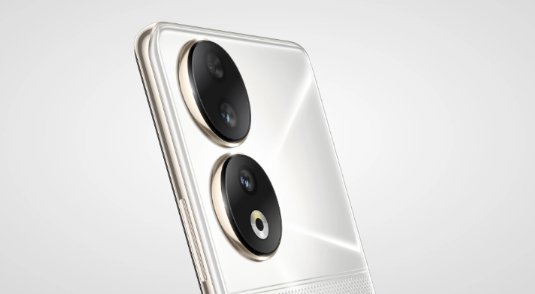
We hope we guided you well in scanning the QR code. If you’re ever in a situation where you need to scan a QR code, whether it’s for a business, then consider using the honor 90 5g phone. We have guided you that will help make the process easier. By following these simple steps, you can easily scan codes and get what you need from them. If you want to learn how you can scan QR easily while doing shopping and bills then read this post carefully. So next time you find yourself needing to use QR codes, be sure to follow these easy tips!