Have you ever confronted an event when your computer displays Error 4013 when you connect your iPhone to it? If yes, the article is for you, as it will clarify how to fix iPhone errors with Dr.Fone – System Repair(iOS).
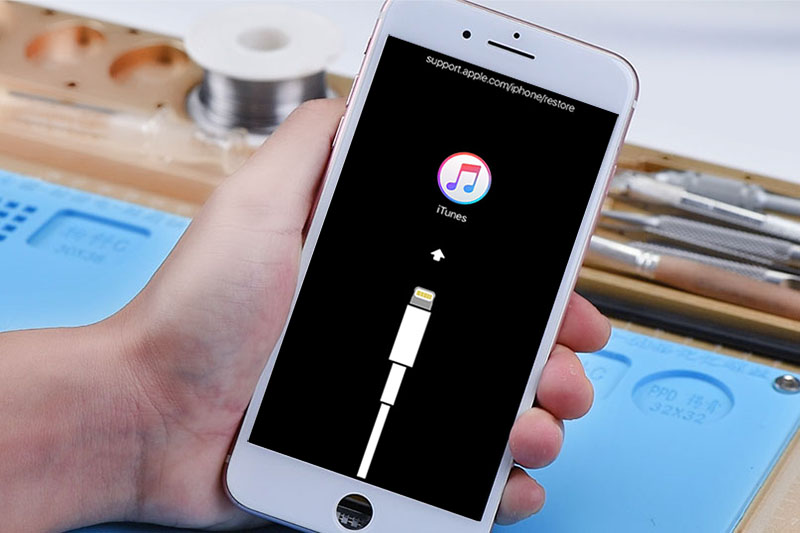
You might connect your iOS device with a computer, and the computer displays an alert that says, “The iPhone couldn’t be restored: iPhone Error 4013 occurred”. It refers that the communication between the computer and iPhone was interrupted. This can be due to the disconnection between iPhone and computer during restoration.
Moreover, there can be a software bug or glitch, or the iTunes is outdated and cannot support the latest iPhone OS versions. It can also occur due to corrupt network settings and a block occurring from Apple servers. If you have jailbroken iPhone models with the help of network configuration data on your computer, it can also corrupt the system, causing an error.
For this purpose, Dr.Fone –System Repair tool is used for speedily iOS system recovery to eliminate errors. In the article, we will discuss the following topics:
Part 1: Don’t Use Faulty Ports to Avoid iPhone Error 4013
At times, the problem doesn’t lie in the software but the hardware. The charging port of your iPhone or the USB port of the computer may be faulty. The grip strength of the port might not be efficient, or there could be some debris inside the ports. To fix this problem, try to connect the device with a different USB port.
You can try using someone else’s Mac to restore the problematic device and eliminate the fault. If the issue is with the port, then iPhone Error 4013 will occur again.
Part 2: Remove Unnecessary Apps to Avoid iPhone Error 4013
Some free space is needed for the operating system to function correctly without displaying errors. There is given space by the system for this requirement. However, when there are updates installed on the iPhone, the space is consumed, causing the malfunctioning. Therefore, you need to free up the space to outgrow the disruption in your iPhone’s functionalities.
In this case, you should delete or relocate the unnecessary applications on your device. It can also include unwanted videos, photos, music, messages, and other documents. For deleting the unnecessary applications from your iPhone to free up space, abide by the following step-by-step guide:
Step 1: Open the “Settings” app from the home screen on your iPhone. Scroll down to find “General” and click on it.
Step 2: Now, open the “iPhone Storage” tab to get the needed information about applications. Now, all the applications on your iPhone will be displayed. Select the app you want to delete, and you will see the application size and data.
Step 3: Tap on the “Delete App” button located below the “Offload App.” You will be asked to confirm the app deletion. After that application’s data will be deleted, and more storage space will be freed.
Part 3: Use Dr.Fone – System Repair(iOS) Tool to resolve iPhone Error 4013
Dr.Fone – iOS System Repair Tool fixes multiple iOS system issues to resolve iPhone error 4013. If your iPhone is facing any system issue like White Apple Logo, boot loop, or iPhone frozen screen, Dr.Fone – iOS System Repair tool will be beneficial. It works irrespectively for all the models of iPad, iPod touch, and iPhone.
Moreover, if your iPhone is facing a black screen of death, or if it’s stuck in the recovery mode, Dr. Fone’s solution of System Repair will resolve the malfunctioning. The best feature of Dr.Fone is that it fixes the iOS system issue while keeping the data intact. You are only required to connect your device and follow the instructions.
Besides fixing the iOS system, Dr.Fone – iOS System Repair showcases different helpful features, listed as below:
- Recover Passwords: If you have lost your Apple ID account, Dr.Fone helps recover them and manage your multiple mail accounts.
- Data Recovery: Dr. Fone’s solution also helps in recovering the accidentally deleted or lost data, including messages, music, photos, and videos.
- Phone Backup: With Dr.Fone, you can backup and restore your data into another iPhone without any complication.
- Phone Manager: This software also assists in managing the iPhone data by exporting, deleting, and adding documents, SMS, documents, photos, etc.
Now, we will teach the method of Dr.Fone – System repair for iOS system recovery of your iPhone:
Step 1: Launch “Dr.Fone” on your Device
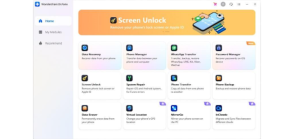
The first step requires you to launch “Dr.Fone” on your device and select the “System Repair” feature out of all available features from the main window.
Step 2: Connect the iPhone with Computer
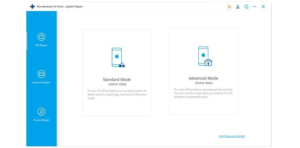
The next step obliges you to connect the iPhone with your computer via a lightning cable. When the application detects your connected iOS device, two options will be displayed: Standard Mode and Advanced Mode.
Step 3: Download the iOS Firmware
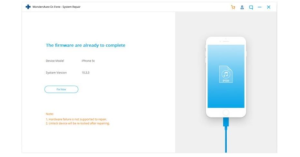
The model type of your iPhone will be detected, and the tool will show available iOS system versions accordingly. Select on the version and press the “Start” button to initiate the process. It will take time to download iOS firmware because of its large size. If the firmware is somehow not downloaded, tap on “Download” to download it using the browser and click on “Select” to restore the firmware.
Step 4: Fix the iOS System
The application will now start verifying the downloaded iOS firmware. After it’s verified, tap on “Fix Now,” and your iOS will start being repaired, so the iOS device works properly again. In a couple of moments, the iPhone will be repaired thoroughly. You can check your iPhone to find that all the iOS system malfunctioning is gone.
Conclusion
It is not surprising if your iPhone is showing up errors lately and the system is malfunctioning. Because iPhone commonly exhibits Error 4013 due to some reasons. It can be the faulty ports that cannot maintain a connection between computer and iPhone. Moreover, it sometimes is due to insufficient storage, causing the iPhone to misbehave.
The article has entirely explained the ways to fix the faultiness to fix the iOS system with the help of Dr. Fone’s tool.